Getting Started with Apollo Studio
Apollo Studio is a GraphQL IDE that enables you to explore the VO API. It's an ideal tool for delving into the schema, building and running queries, as well as referencing the documentation.
Prerequisites
Before using Apollo Studio, you need to:
- Be onboarded as a platform user
- Have the
tools.apiExplorer.accessrole assigned to your user account
Accessing Apollo Studio
To access Apollo Studio:
- Sign in to Composer
- Open the navigation menu and expand Resources
- Select Apollo Studio
The Apollo Studio menu item is only visible if the user has the tools.apiExplorer.access role assigned.
Authentication
Apollo Studio runs inside Composer and authenticates as your signed-in user. Query and mutation operations are authorised automatically — there are no connection settings to configure.
Your access is governed by the tools.apiExplorer.access role. If the role is not assigned, the Apollo Studio menu item is not shown.
Basic usage
- Navigate the schema and select operations, types, and fields using the Documentation tab in the Explorer view.
- Define operation variables through the Variables tab.
- Utilize the Traces view to gauge the performance of your query.
- Generate a link to an operation definition using the Share button.
- Export data in JSON or CSV format.
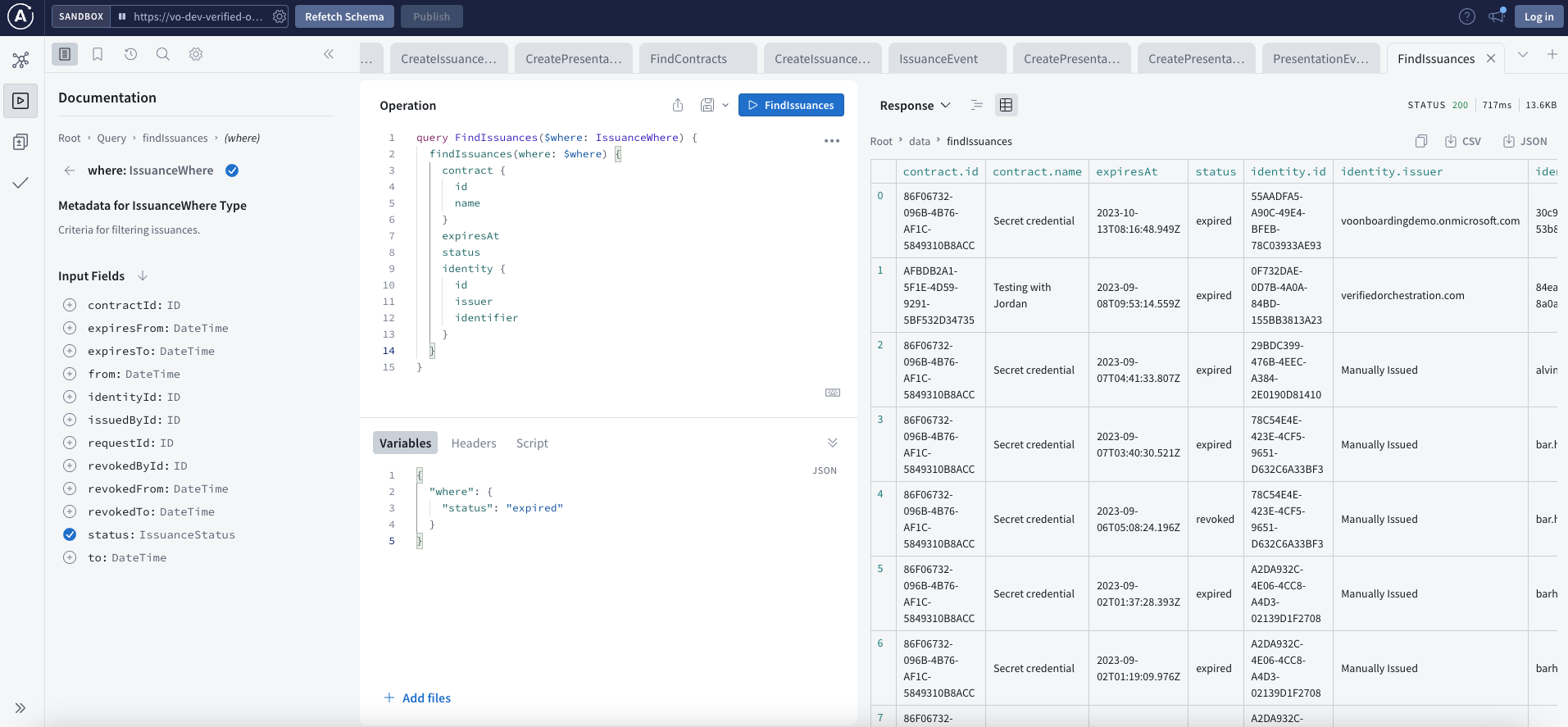
Building and executing operations
Queries and mutations
- Type your query or mutation in the editor panel
- Add any required variables in the Variables panel (JSON format)
- Click the Run button or press
Ctrl+Enter(Mac:Cmd+Enter) - View the response in the right panel
Example query to find presentations:
query FindPresentations {
  findPresentations {
    id
    receipt
    presentedAt
  }
}
Subscriptions
Subscriptions require an additional authorization header since they use WebSocket connections which do not include cookies.
To set up subscriptions:
- Copy an Authorization header value from Composer using your browser dev tools
- In Apollo Studio, open Connection settings
- Insert the Authorization header into the Headers section
You can now subscribe to events and see event data.
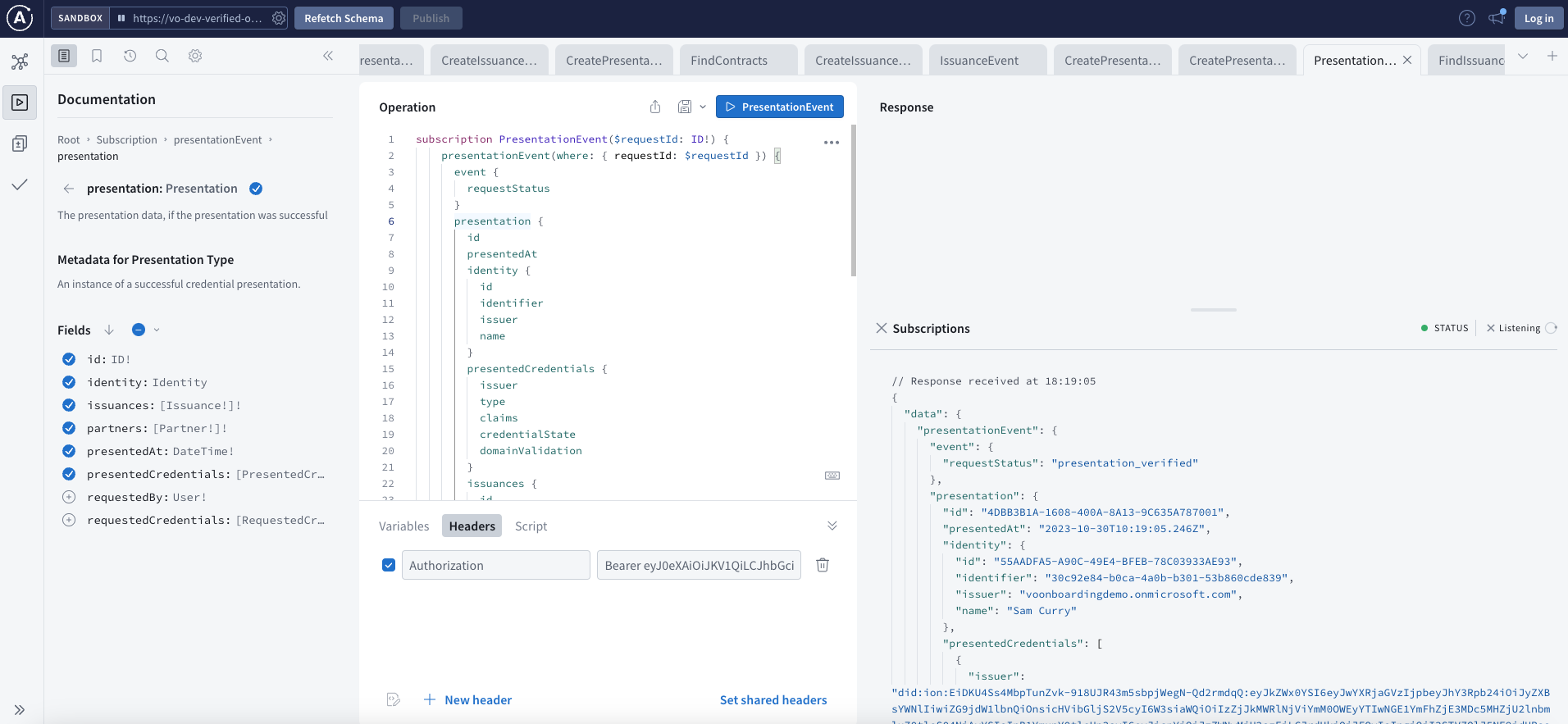
Request tracing
Apollo Studio displays detailed timing information for each request. Utilize the Traces view to gauge the performance of your query.
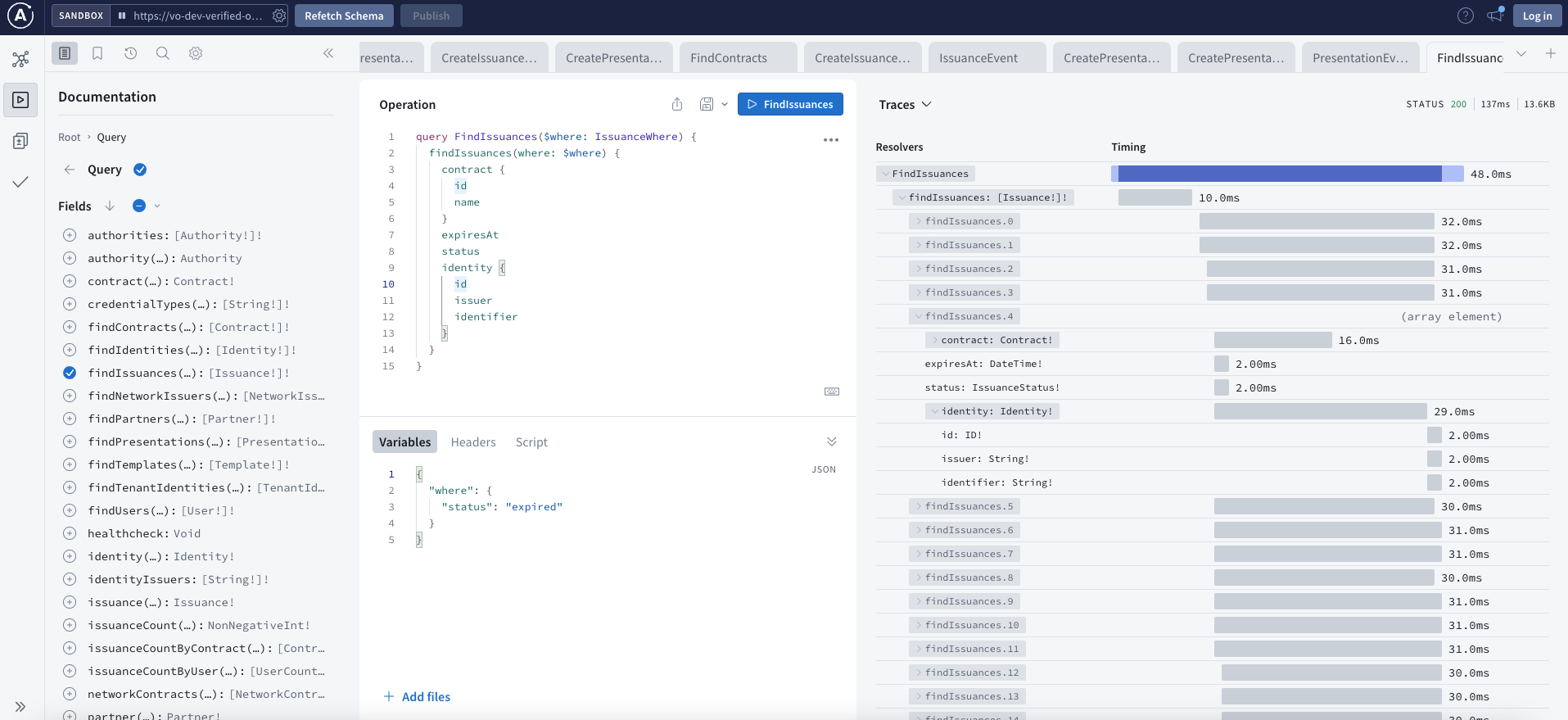
Session duration
Query and mutation operations acquire a fresh access token for each request, so they keep working for as long as you remain signed in to Composer.
Subscriptions use the authorisation header you supplied when the connection was opened. Access tokens are typically valid for approximately 50 minutes, subject to your tenant configuration, so if a subscription stops receiving events, reload the page and supply a current header.
Next steps
- Integration Overview - Learn about different integration options
- JavaScript Client - Set up a JavaScript client for your application
- React with Apollo - Integrate with a React application